
Deploy a Production Craft CMS Instance on AWS: A Comprehensive Guide
Popular open-source content management system Craft CMS enables web developers to develop dynamic websites. By harnessing the capabilities of AWS, the preeminent cloud platform globally, you can establish an environment for your Craft CMS projects that is both scalable and dependable.
This combination guarantees that your website can effortlessly expand, ensures uptime, is secure, and can be recovered in case of any disasters. Let's discuss how to configure Craft CMS for a robust AWS deployment.
Overall Architecture
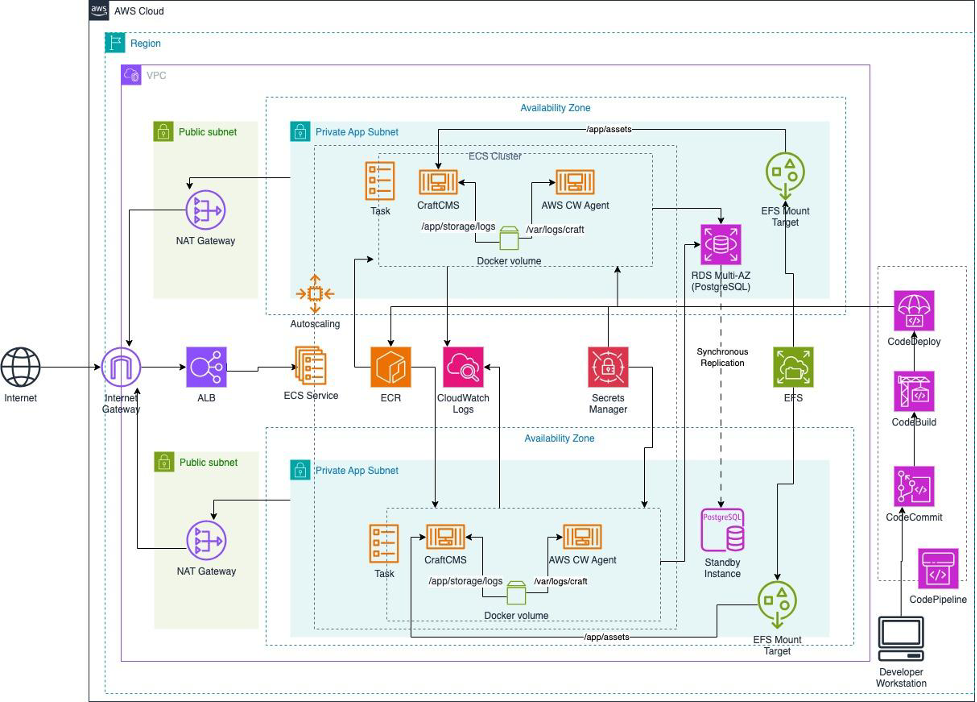
Technology Decisions
Following are the various technology decisions we have made for this deployment:
- Amazon ECS (Elastic Container Service): This service orchestrates the deployment and scaling of Docker containers. The Nginx web server and our Craft CMS application will be hosted as containers (ECS Tasks) within ECS
- RDS PostgreSQL: This is the primary database for our Craft CMS instances.
- AWS Secrets Manager: This would be used for centralized and secure secret storage
- Craft CMS/Nginx container image: Craft’s officialcontainer images would be used i.e. craftcms/nginx:8.2official image. This image includes the Nginx web server and Craft CMS on Alpine Linux.
Architectural Decisions
Several architectural challenges must be addressed to run Craft CMS in a scalable and load-balanced environment like AWS; let’s explore the critical design decisions that we made:
PHP Sessions Management
One hurdle in a load-balanced environment is Craft CMS's default reliance on file-based PHP sessions. This can lead to an inconsistent user experience if a user bounces between servers during a session.
We have several options to address this, but the solution we chose is to leverage the Application Load Balancer (ALB)’s built-in "sticky sessions" functionality, which ensures users are directed back to the same server for the duration of their session.
Alternatively, using an Amazon ElastiCache for Redis, a high-performance in-memory data store, to manage sessions centrally is also an excellent solution. Additionally, Craft can be configured to store sessions directly in the database, or we can utilize a shared Elastic File System (EFS) volume accessible by all servers.
Assets Handling
Files uploaded to Craft (like images, PDFs, etc.) are stored locally by default. In a multi-server environment, we need a solution to share such assets across all servers.
The solution that we are going with for this problem is to use Amazon Elastic File System(EFS) which provides a shared file system for AWS compute services. This would entail the following:
- Create an EFS filesystem.
- Install it as a volume in the path/app/assets craft containers.
- Establish a Craft filesystem linked to the directory /app/assets.
- Using the EFS file system, create one or more craft volumes.
Other Methods
Use cloud-based storage options such as Azure Blog Storage, Google Cloud Storage, and S3.
Caching Strategies
By default, Craft CMS utilizes the local file system for caching data. While this might be suitable for single-node deployments, it creates challenges in a load-balanced environment.
To optimize caching performance and ensure consistency, we can configure Craft to leverage the database for caching purposes. Alternatively, we can integrate with Amazon ElastiCache, a managed Redis service, to benefit from its high-performance caching capabilities.
Environment Variables Management
A centrally managed solution is required to manage and source the environment variables for all the craft containers. Some of these environment variables may also contain sensitive data like database credentials, API keys, etc.
For this, we will rely on AWS Secrets Manager since we are already using the same for storing secrets anyway. AWS Secrets Manager integrates natively with ECS thus making the integration easier to implement and manage.
In the containers, before the application starts (entry point/command), you can also query the Secrets Manager entry and then export them as environment variables to the application.
SecurityKey Configuration
Craft CMS relies on a security key for encryption/decryption and other functions (validation, session security, hashing, CSRF protection). The security key needs to be unique across each application, however, within a single application it should be the same. Therefore, maintaining the same key across all container instances is vital for proper functionality.
Since each container instance of the application needs to have the same security key, we need a centralized solution for this. We are already using AWS Secrets Manager application environment variables, so we can reuse the same for the security key as well.
All we need to do at this point is add an entry for CRAFT_SECURITY_KEY in the same secret and export it as an environment variable to the application along with the rest of the environment.
Project Configuration
Craft’s Project Config produces yaml files in the local filesystem. Thus this standard approach does not work in a multi-server environment. The solution includes the following steps:
Disable config changes from craft admin by setting the "allowAdminChanges" config parameter to false.
Make all config changes via the local dev environments and commit the yaml files in the source code repo (i.e files under config/project/*)
During the deployment process run the PHP craft up command to apply project config from the yaml files (along with other pending plugin/content migrations)
Logging
In our Craft setup, there are two main categories of logs that we need to capture:
- Stdout/stderr: In addition to stdout/stderr outputs, these would also include nginx server access logs. This is because the container image we are using has nginx configured to publish access logs to stdout.
- Application logs: These are application-level logs written to the storage/logs folder. These include the following with each type having its date-based log file names: web, console, queue, and PHP errors
We are going to use AWS Cloudwatch Logs as our centralized logging platform and ingest all the above-mentioned logs to it. This will require the following for each log category:
- Stdout/stderr and nginx access logs
- Simply use the awslogs log driver with the webserver containers to capture stdout/stderr. You easily do it from within ECS.
- Application logs
- Spawn another container (log sidecar container) within the ecs task along with the main Craft CMS container.
- Create a docker volume and mount it to the Craft CMS container at storage/logs and location /var/log/craft (could be anywhere) in the sidecar container.
- Configure the Cloudwatch agent on Sidecar to publish the logs to Cloudwatch.
Bottom Line
Following these best practices and architectural decisions, you can deploy scalable, secure, and resilient (cross AZ) product Craft CMS instances on AWS. Note that these guidelines can be customized based on your project needs and specific use cases.
Looking to deploy your own Craft CMS instances on AWS? The experts at 12 Tech are happy to guide you through the process and tailor a solution that perfectly aligns with your requirements. Contact us today to discuss your project and explore the possibilities!